macOS menu bar app · Mac mini, Mac Studio, MacBook, iMac

Your Mac, ready the moment it boots. iPad or no iPad.

Use the iPad as the only screen of a monitor-less Mac mini. Add the iPad as a second screen to your MacBook or any Mac, at every login. Or run any Mac as an always-on server that never sleeps and stays sharp over Screen Sharing. One small app, set up once.

macOS 14 Sonoma or laterAny Sidecar-compatible Mac and iPadServer mode needs no iPad at allNo account · No subscription

Monitor attached

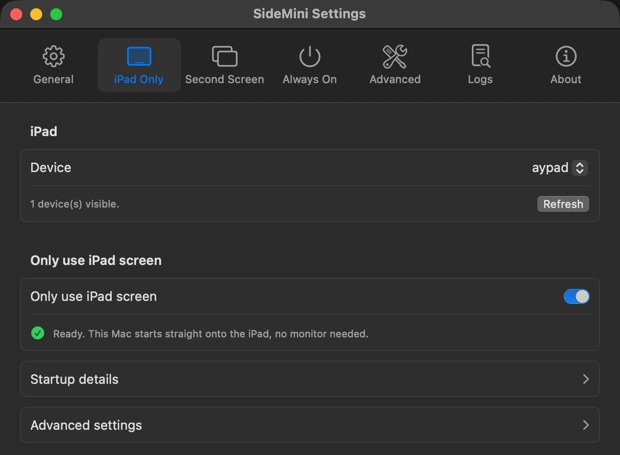
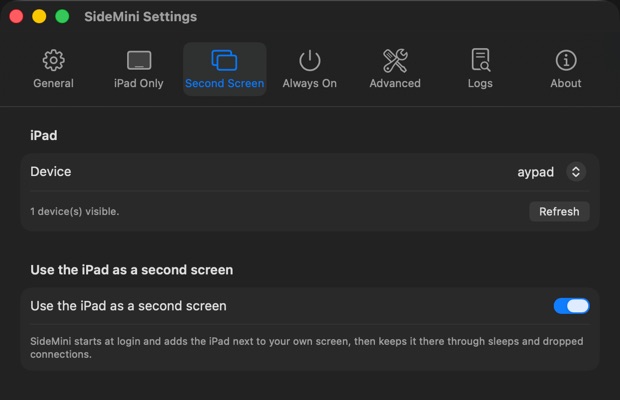
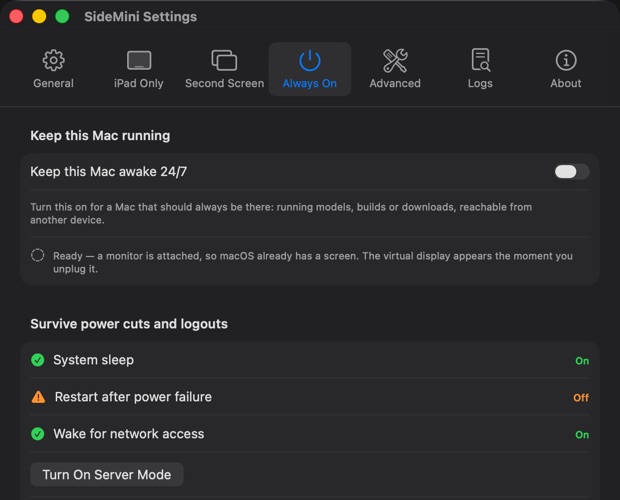
Illustration of a real SideMini log; the tabs are the three setups. Nothing here touches your Mac.

0 clicksper boot, per wake, per reconnect
~2 sfirst retry after a dropped link
24/7Server mode: never sleeps, restarts itself
Offlineno account, license verified on your Mac

Pick your setup

Three jobs. One little app.

In the order SideMini was built for: the iPad as the only screen of a monitor-less Mac mini or Mac Studio, the iPad as a second screen for a MacBook, iMac or Mac mini, and any Mac that stays awake as a server. Pick one, or all three; the setting is applied at every login.

01iPad as the only screen

Mac mini · Mac Studio

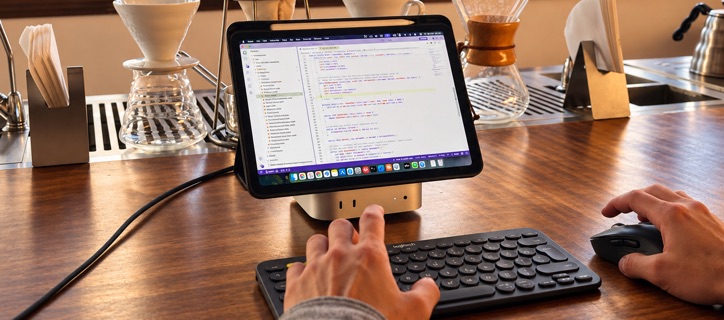
No monitor at all. SideMini creates a virtual display, connects the iPad and mirrors your Mac onto it, at boot and after every drop.

  • Turn onSettings → iPad Only → Only use iPad screen
  • Best withA USB cable and the iPad’s Auto-Lock set to Never
  • OptionalLock the Mac as soon as the iPad is showing, once per boot
How it works ↓

02iPad as a second screen

MacBook · iMac · Mac mini

Keep your MacBook’s screen or your monitor. SideMini adds the iPad next to it every time you log in, extended or mirrored, at the resolution you chose. Works at a café as well as at a desk.

  • Turn onSettings → Connection → Connect even with a monitor
  • Then pickSettings → Display → Extend the desktop
  • You getA real Sidecar display: drag windows over, use Apple Pencil, Sidebar and Touch Bar
What it remembers ↓

03Server & LLM box

Any Mac · no iPad needed

Keep any Mac up 24/7: a Mac mini in a cupboard, a Mac Studio under the desk or an old MacBook running models, builds or Plex. Awake all night, back on its own after a power cut, and sharp on screen when you connect from anywhere.

  • Turn onSettings → Always On → Server mode (one click, admin password)
  • Then pickVirtual display size: 1080p, 1440p or 4K
  • You getA Mac that is simply always there: awake, reachable, and back by itself after a power cut
How 24/7 works ↓

01 · iPad as the only screen

Sidecar is great. Starting it is not.

Sidecar can already make an iPad a Mac display, but it needs a person at a real screen to click, and to click again after every restart, sleep, or dropped link. A Mac with no monitor has nobody to click. SideMini is that somebody.

Every boot, by hand

Plain Sidecar
  • Find a monitor to plug in, or guess blind
  • Log in
  • Open Control Center → Screen Mirroring
  • Pick the iPad and wait
  • Unlock the iPad when it says “locked or asleep”, try again
  • Set the resolution and mirroring you actually wanted

…and again after every restart, sleep or drop.

With SideMini

Automatic
  • Power on.
It waits for Sidecar’s service to come up, finds your iPad, connects, and applies your saved resolution and mirroring. iPad asleep? It retries in bursts, then keeps watching. Link dropped? It’s back in about two seconds. Plug a real monitor in and it steps aside. Unplug it and the iPad is your screen again.

01 · How it works

Three steps. The first two happen once.

Do the setup while a monitor is still attached, so the automatic behaviour is ready the day you need it.

  1. STEP 1

    Install and pick your iPad

    Open SideMini, follow the two-minute welcome guide, choose your iPad and run a test connection. The Doctor checks Sidecar, Wi‑Fi, Bluetooth and your Apple Account for you.

    Once
  2. STEP 2

    Turn on “Only use iPad screen”

    One switch sets start-at-login, auto-connect and reconnect together. If you want a fully unattended boot, SideMini explains the FileVault trade-off and asks before changing anything.

    Once
  3. STEP 3

    Unplug the monitor

    From now on, whenever the Mac reaches the desktop without a monitor, your iPad becomes the screen. Restart, sleep, travel: nothing to do.

    Every time, automatically

01 · Under the hood

The one trick a headless Mac needs.

A Mac with no display has nothing to draw, so Sidecar “connects” and then silently drops. SideMini gives macOS a screen first, then hands it to your iPad.

1 · At the desktopMac mini, no monitorSideMini starts with your login session and notices there is no physical display.
2 · Created by SideMiniVirtual displayA screen only macOS can see, sized like the iPad. It goes away again when a real monitor returns.
3 · SidecarYour iPadSideMini connects the iPad through Sidecar and mirrors the virtual display onto it. A real Sidecar display, sidebar and all.

Built on Sidecar, not around it

The iPad behaves exactly like a Sidecar display you started by hand, because that is what it is. Apple Pencil, sidebar and Touch Bar options included.

Knows a real monitor from a fake one

HDMI dummy plugs and virtual screens from other tools are recognised, so SideMini does not mistake them for a monitor and leave your iPad dark.

Honest when something is off

Locked iPad, Bluetooth off, still starting up: the menu tells you what it is waiting for, in plain words.

02 · iPad as a second screen

Your screen stays. The iPad joins it, every login.

On a MacBook at a café or an iMac at your desk, Sidecar can extend your work onto an iPad, but it forgets after every restart, sleep and dropped link. Turn on “Connect even with a monitor” and SideMini remembers for you.

  • Connects at login, without Control CenterOpen the MacBook, log in, and the iPad is already next to it. Nobody clicks Screen Mirroring again.
  • Remembers how you like itExtended or mirrored, the resolution, Sidebar and Touch Bar: chosen once, reapplied on every connection.
  • Comes back on its owniPad went to sleep, cable pulled, Wi‑Fi hiccup: SideMini reconnects within seconds and keeps watching in between.
  • Still plain Sidecar underneathApple Pencil, HiDPI, USB or wireless: everything Sidecar does, untouched. SideMini only removes the clicking.

03 · Server & LLM box

Keep your Mac up 24/7.

Left alone, a Mac goes to sleep, and after a power cut it simply stays off. That is fine for a laptop and useless for a machine that should answer at three in the morning. SideMini keeps a Mac mini, a Mac Studio or an old MacBook awake, online and able to recover on its own, with or without an iPad.

Awake around the clockNever goes to sleepYour model keeps answering at 3am, the download finishes overnight, the build server is there when you get up. Not for an hour, not until the lid closes: always.
Survives the nightComes back by itselfA power cut used to mean the Mac was off until someone pressed the button. Now it starts again on its own, and it wakes up the moment you connect from another room.
Always reachableScreen Sharing that isn’t blankA Mac with no monitor normally shows a blank or tiny picture when you connect from your laptop or phone. SideMini gives it a screen to draw on, so it looks normal from anywhere. Pick 1080p, 1440p or 4K.
One switch, four fewer worries
  • Stays awake day and nightNo idle timer, no overnight nap.
  • Turns itself back on after a power cutYou do not have to be home to press the button.
  • Wakes up the moment you connectFrom your laptop, phone or iPad, on the same network.
  • Remembers your old settingsOne click puts everything back the way it was.
A typical always-on setup
  1. Settings → Always On → Turn On Server Mode. Enter your password once.
  2. Pick a virtual display size, 1080p is plenty. Turn on Screen Sharing in macOS.
  3. Choose how the Mac reaches the desktop after a restart. SideMini walks you through it.
  4. Add an iPad later and it becomes the screen. Nothing to set up again.

Features

Small app. Every edge case covered.

Everything below exists because a headless Mac hit that exact problem during development.

Starts with your Mac

Up as early as macOS allows, before you could have reached a menu.

Waits for a sleeping iPad

iPad locked or asleep? SideMini retries in bursts, then keeps watching. Wake it and you are connected in seconds.

Reconnects after drops

The first retry fires two seconds after a drop, then backs off politely. You keep working; it keeps trying.

USB or Wi‑Fi

A cable is faster and keeps the iPad charged. Wireless works too, and SideMini falls back automatically.

Resolution, HiDPI, mirror or extend

Pick the mode you want from the menu bar. SideMini remembers it and reapplies it on every connection.

Replaces the dummy plug

Sharp Screen Sharing on a Mac with no monitor and nothing plugged in. Pick 1080p, 1440p or 4K. Own a plug already? Tell SideMini it “doesn’t count”.

Keeps the Mac awake, 24/7 if you like

Off, while the iPad is connected, or always. For a Mac running models, downloads or builds that must stay reachable.

Doctor

One click checks everything the setup depends on, from Bluetooth to disk space, and tells you how to fix what is wrong.

Lock after connect

Once per boot, the lock screen comes up the moment the iPad is showing. Unattended, but not open.

Hear it connect

A short chime on launch and on connect, so you know it worked before you have even looked at the iPad.

Server mode

One click: never sleep, turn back on after a power cut, wake up when you connect. Asks for your password first; undo any time.

Nothing leaves your Mac

Menu bar only, no Dock icon. No account, no analytics, no server: the license key is checked locally and the app never phones home.

Read this before you buy

What you need, and the one trade-off.

A headless setup is only relaxing when you know exactly what it depends on. Here is the honest list.

What you need

  • A Mac on macOS 14 Sonoma or later and an iPad on Apple’s Sidecar-compatible list.
  • Both devices on the same Apple Account with two-factor authentication.
  • Wi‑Fi and Bluetooth on, Handoff enabled. A USB cable is optional but recommended.
  • The iPad unlocked once for the very first pairing, with a monitor still attached for setup.
  • No iPad? Server mode and the virtual display need only the Mac.

The trade-off

macOS decides what happens between power-on and login, and it will not log in by itself while FileVault is on. For a truly no-touch boot, FileVault must be off and automatic login on. SideMini can make both changes for you, after you confirm, and can reset them.

Prefer to keep FileVault? For planned restarts the app has a “restart bypassing FileVault once” option; for a cold start you type your password blind at power-on. Both are explained inside the app.

Good to know

  • SideMini uses the same internal Sidecar interface macOS uses, like the open-source SidecarLauncher. Apple can change it; if a macOS update breaks it, the app says so and a fix ships as a free 1.x update.
  • Not on the Mac App Store, by design: the App Store does not allow this kind of app. Downloads are signed and notarized by Apple.
  • Independent software. Not affiliated with or endorsed by Apple.

Pricing

Try it for three days. Then one payment, forever.

The trial is the full app in all three setups, no card and no account. If it fits the way you use your Mac, buy once and keep every 1.x update.

1
Pay, get your key by email

Checkout is handled by our payment partner. Your key arrives within a minute.

SM1-eyJlIjoieW91QGV4YW1wbGUuY29tIn0.R2x…
2
Paste it into SideMini

Menu bar → Enter License… → paste → Activate. That is the whole activation.

3
Done. Works offline.

The key is verified on your Mac. Moving to a new Mac? Paste the same key.

SideMini 1.xOne-time purchase
$9USD · once
  • All three setups: only screen, second screen, server
  • All 1.x updates included
  • Personal license for the Macs you own (up to 2)
  • No account, no subscription, works offline
  • 14-day refund if it does not work with your setup
Buy SideMini Or start the free 3-day trial

Prices in USD; local taxes are added at checkout. Future major versions may be a paid upgrade.

Questions

Good questions, plain answers.

Something missing? Email support and a human replies.

Is SideMini the same thing as Sidecar?

No. Sidecar is Apple’s built-in feature that lets an iPad act as a Mac display, but a person has to start it from a real screen every time. SideMini is a menu bar app that starts, retries and reconnects Sidecar for you, and creates the virtual display a headless Mac needs so the connection can happen with no monitor at all.

Does it work with no monitor attached at all?

Yes. That is the whole point. A Mac with no display has nothing to draw, so Sidecar fails silently. SideMini creates a virtual display first, connects the iPad, and mirrors that display to it. Plug a real monitor back in and SideMini steps aside.

What if my iPad is asleep when the Mac boots?

SideMini retries in short bursts, then keeps watching in the background. Wake the iPad and it becomes the screen within about fifteen seconds. Setting the iPad’s Auto-Lock to Never while it serves as a display avoids the wait entirely.

Do I have to turn off FileVault?

Only if you want the Mac to reach the desktop with nobody touching it. macOS cannot log in automatically while FileVault is on. SideMini can switch FileVault off and automatic login on for you, after you confirm, and can reset both later.

If you prefer to keep FileVault, use the app’s “restart bypassing FileVault once” option for planned restarts, or type your password blind at power-on. Both are explained inside the app.

Can I still use a real monitor sometimes?

Yes. Plug a monitor in and SideMini goes to standby. Unplug it and the iPad takes over again. You can also tell it that a particular display, such as an HDMI dummy plug, “doesn’t count”.

Which Macs and iPads are supported?

Any Mac running macOS 14 Sonoma or later: MacBook Air, MacBook Pro, iMac, Mac mini, Mac Studio, Apple silicon or Intel. And any iPad on Apple’s Sidecar-compatible list, signed in to the same Apple Account with two-factor authentication. SideMini is developed and verified on an M4 Mac mini running macOS 26.

What does the trial include?

Everything. The trial is the full app for three days from first launch. When it ends, SideMini stops connecting until you enter a key; nothing else changes and your settings stay.

Is the license a subscription?

No. It is a one-time purchase that includes all 1.x updates. There is no account; your license key is verified on your Mac and works offline.

Could a macOS update break it?

SideMini uses the same internal Sidecar interface macOS uses, which Apple can change. If an update breaks it, the app tells you instead of failing silently and a fix ships as a free 1.x update. Test major macOS upgrades with a monitor nearby before relying on a headless setup.

Does it work on a MacBook?

Yes. Second screen and Server mode work on any Mac, MacBook included: the iPad joins the built-in screen at every login, and Server mode keeps the MacBook awake and reachable. The only-screen setup is for Macs without a display of their own, Mac mini and Mac Studio; a MacBook always has its screen, so there SideMini adds the iPad next to it instead.

Can I use SideMini without an iPad?

Yes. Turn on the virtual display and Server mode in Settings → Always On and a monitor-less Mac mini becomes a proper little server: Screen Sharing gets a sharp desktop, the Mac never sleeps, turns itself back on after a power cut and wakes up when you connect. Add an iPad later and it becomes the screen.

Does it keep my Mac awake 24/7?

If you ask it to. “Keep this Mac awake” has three settings: off, while the iPad is connected, or always. For a power cut or a logout you also want Server mode, which changes the Mac’s own energy settings so it never sleeps and turns itself back on.

Does SideMini collect any data?

No. No account, no analytics, no crash uploads. The app never contacts a server. Payment is handled by our payment partner; see the privacy policy.